Make a Harry Potter flying-car video with VideoDraft
Describe the flying-car scene, choose a look and give VideoDraft the research. Paste the brief below into the Mac app to start your own version.
Already have VideoDraft? Paste the brief into a new project.
Video transcript
Harry Potter's flying car had a truck hiding underneath. For some shots, the crew mounted a real Ford Anglia on a moving rig. A joint under the car let it tilt from side to side and pitch up and down. The whole rig rode behind a pickup truck, so the car could sway while the world moved past the windows. And to make it light enough to lift, they took out the one thing it needed to drive: its engine.
1. Open VideoDraft on your Mac
Install VideoDraft, sign in and create a new project. Choose an agent in the app, then open a chat.
2. Paste this project brief
The brief tells VideoDraft what to make, how it should look and which research to use. The agent can choose Blender, image or video generation, and editing tools for the job.
A starter template based on the finished example. Use it to make your own version in VideoDraft.
Read the brief
Make a short vertical video explaining one practical method used for Harry Potter's flying car. Handle the research, visuals, narration and edit in this VideoDraft project.

Use this finished example for the style and pacing:
https://videodraft.ai/blog/harry-potter-blender-guide/film.mp4

Research source:
https://www.harrypotter.com/features/the-flying-ford-anglia

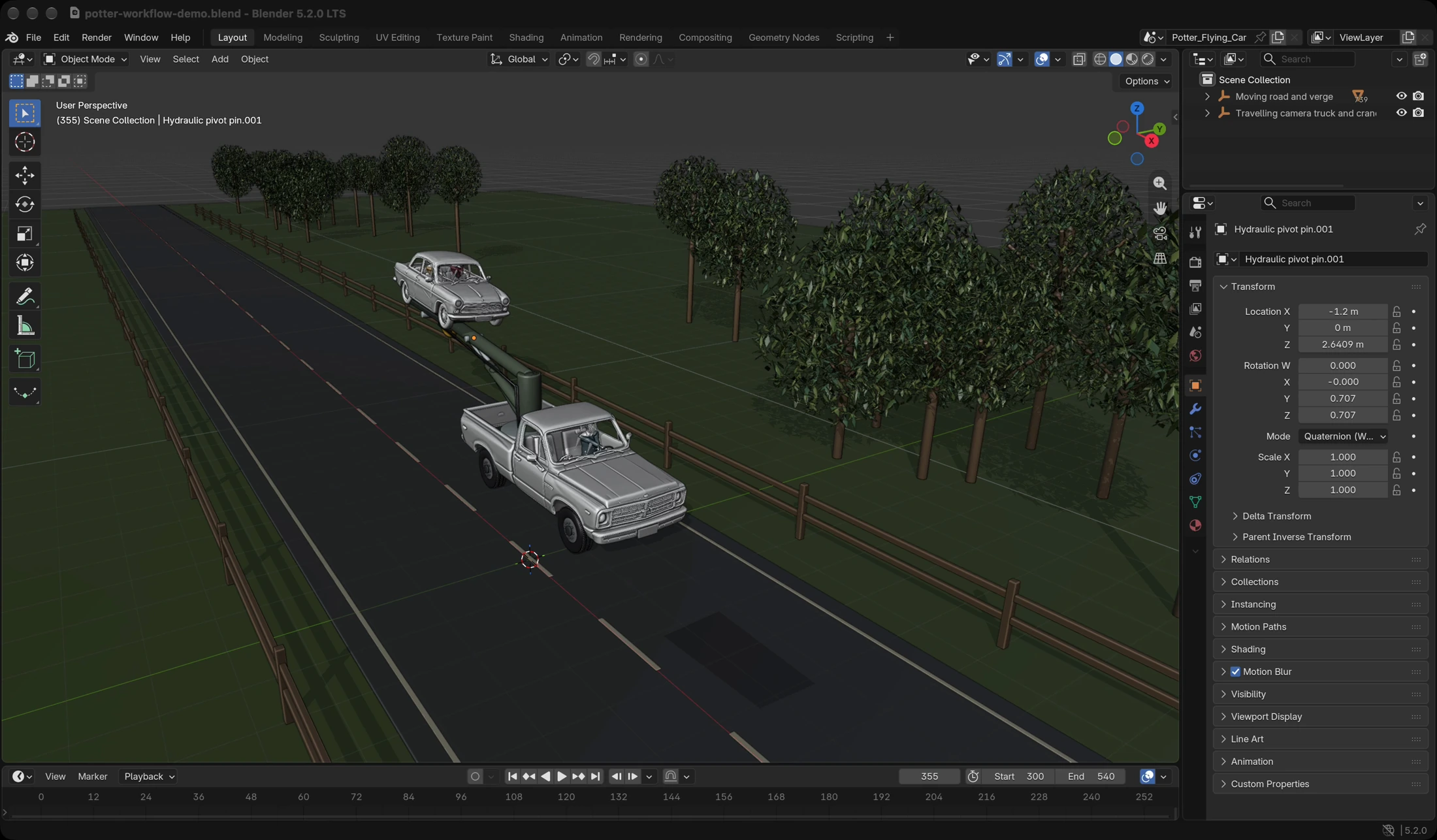
Story: Begin with a recognizable flying car. Reveal the joint beneath it, follow the support arm back to the pickup, then show the empty engine bay to explain how the car was lightened. Make clear that this was one filming arrangement, not the method behind every shot. Check the facts against the source.

Look: Clear, polished 3D illustrations of a pale compact car above a country road. Keep the car, joint, arm and pickup visibly connected. Both vehicles should face the same direction, with the pickup's tires on the road. Move the camera from the car to its support, then show the whole arrangement.

Choose the tools that suit each shot. Use Blender for the connected rig and controlled camera move. Use image or video generation for references, assets or visual finishing where it helps. Create the voiceover and sound, then assemble the film in VideoDraft Editor.

Aim for about 30 seconds in 1080 x 1920. Use a natural conversational voice, clear white captions and quiet music. Give the final engine reveal enough time to make sense.

Check the tools available in this project and help me connect anything missing. Tell me the cost before paid generation. Make a first preview for me to review, then help me refine it and export the finished MP4. Keep the editable project.
3. Review the preview
Watch the first version and give one clear note in the same chat. VideoDraft can revise the visuals, narration or edit. For example:
“Show the connection from the car to the pickup more clearly. Keep both vehicles facing the same direction.”
Inside this example
For this example, Blender kept the car, support arm and pickup connected through the camera move. Generated assets helped with the vehicles. VideoDraft handled the narration, sound and edit.
The starter brief works backwards from the finished video: the story, visual style and research. Change those parts to try your own topic.
Opening film clips: Warner Bros. / Harry Potter. The rig and empty engine-bay views are our original 3D illustrations of one filming arrangement.
Try your first project
Start with this brief or change the topic and style. You can shape the result in the same project.
Already have VideoDraft? Paste the brief into a new project.