Make a Dark Knight breakdown with VideoDraft
Start with one brief in VideoDraft for Mac. Describe the truck flip, the look and the facts, then let the agent build a preview.
Already have VideoDraft? Paste the brief into a new project.
Video transcript
This is a real eighteen-wheeler, flipping on a Chicago street. Christopher Nolan refused to fake it, even when his effects chief had doubts. So his team built a giant steel ram, hidden inside the trailer, and caged the driver in steel, with one button. He pressed it, and an explosive charge slammed the ram into the road, so the truck's own speed flipped it over its nose. And the only CGI in the whole shot? It erased the ram.
1. Open VideoDraft on your Mac
Install VideoDraft, sign in and create a new project. Choose an agent in the app, then open a chat.
2. Paste this project brief
The brief tells VideoDraft what to make, how it should look and which research to use. The agent can choose Blender, image or video generation, and editing tools for the job.
A starter template based on the finished example. Use it to make your own version in VideoDraft.
Read the brief
Make a short vertical video explaining the truck flip in The Dark Knight. Handle the research, visuals, narration and edit in this VideoDraft project.

Use this finished example for the style and pacing:
https://videodraft.ai/blog/dark-knight-blender-guide/film.mp4

Research source:
https://www.youtube.com/watch?v=KWu5LaeKGFU

Story: Explain the hidden ram inside the trailer, the protected driver, the ram meeting the road and the truck vaulting forward. End with the reveal that the visual effect removed the ram. Check these facts against the production source and do not invent measurements.

Look: Clear, polished 3D illustrations of a truck on a city street at night. Use warm windows, readable cutaways and close views of the important connections. Make the cause easy to understand before showing the result. Use an original fictional driver if a person is needed.

Choose the tools that suit each shot. Use Blender when the mechanism needs consistent geometry and movement. Use image or video generation for references, visual finishing or a human moment where it helps. Create the voiceover and sound, then assemble the film in VideoDraft Editor.

Aim for about 30 seconds in 1080 x 1920. Use a natural conversational voice, clear white captions and quiet music. Keep the explanation complete and the ending tight.

Check the tools available in this project and help me connect anything missing. Tell me the cost before paid generation. Make a first preview for me to review, then help me refine it and export the finished MP4. Keep the editable project.
3. Review the preview
Watch the first version and give one clear note in the same chat. VideoDraft can revise the visuals, narration or edit. For example:
“Make the ram hitting the road clearer before the truck tips forward. Keep the voice and the rest of the edit.”
Inside this example
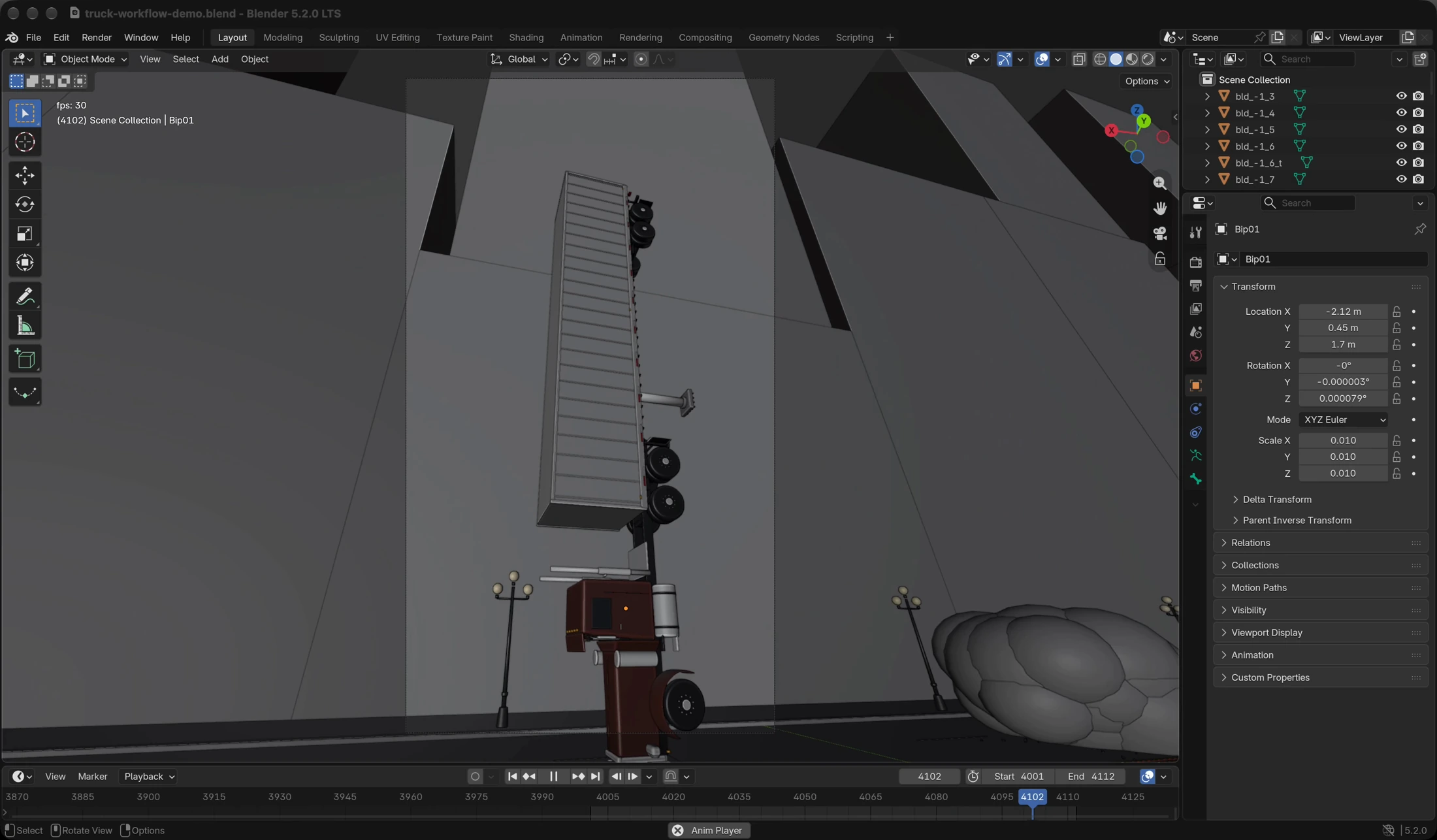
For this example, Blender supplied the truck, rig and camera animation. Image and video generation helped with the driver insert. VideoDraft handled the narration, sound and edit.
The starter brief works backwards from the finished video: the story, visual style and research. Change those parts to try your own topic.
Film clips: The Dark Knight (2008). Making-of clips: Stuntmen’s Association of Motion Pictures. The 3D illustrations and fictional driver insert were made for our explanation.
Try your first project
Start with this brief or change the topic and style. You can shape the result in the same project.
Already have VideoDraft? Paste the brief into a new project.